Using Copy Trading
Open Copy Trading from the main menu. Along the top you will see tabs. Which tabs appear depends on whether you are a subscriber (you follow pilots) or a pilot (others follow you).
Everyone sees: Overview, Broker Accounts, Positions.
Subscribers and pilots see: Performance.
Subscribers also see: Traders, Leaderboard, Settings, Support.
If you expect a tab and do not see it, you may be in pilot mode, or copy trading may not be enabled for subscribers on your account yet.
Paused? If auto-copy is paused (fully or for some traders), a pause banner stays visible on every tab until you resume - use Resume Auto Copy on the banner or review the Settings tab. While paused, new trades will not copy.
Overview
Your home base for copy trading.
- Performance score - Subscribers see Copy Performance Score (how your copied trades are doing). Pilots see Trading Performance Score (how their shared strategy looks to followers).
- Win rate, slippage, execution - Shown when the app has enough data.
- Social summary - Subscribers see Traders Copied. Pilots see Active Followers.
- Refresh - Tap when you want the latest numbers.
- Some cards jump to Positions when you click them, so you can go from a quick summary to detail.
Broker Accounts
Connect the broker account where copied trades should be placed.
- Pick your broker and start the link flow.
- Sign in at your broker and finish any steps they show.
- When you return to Trade Echo, check that status shows connected.
- Use sync if the app offers it and balances or positions look out of date.
- Add a label if you have more than one account so you always know which one copy trading uses.
- Subscribers: tap Set Active on the funded account where copies should land - Cash or Margin, whichever you use to trade. Monthly and yearly plans route through one active account; Lifetime may also offer per-pilot broker assignment when the app shows it.
Pilots: use Set Active on the account you actually trade so followers mirror the right book. See Pilot Setup.
This link is only for copy trading. It is not the same screen as Broker Sync for your trade journal. You may complete both if you use both features.
Traders (subscribers only)
Browse pilots you can follow or already follow. Pilots who are not currently active still appear as cards, so you always see the full roster - not just who is live right now. Open a profile to read how they trade, then use the buttons the app shows to start copying or adjust who you follow. Availability depends on the pilot and your plan.
Leaderboard (subscribers only)
See pilots in a ranked list. Tap in to compare styles and performance summaries. When you are ready, use Enable copy or the on-screen flow to follow someone (wording may vary by release).
Performance (subscribers and pilots)
Deeper history and charts: profit and loss style views, execution lists, and trends when enabled. Subscribers see the performance of their copied trades; pilots see how their shared strategy has performed. If you copy more than one trader, look for the multi-trader P&L comparison view to compare how each trader's copies are doing side by side. If figures look old, use Refresh or leave the tab and open it again.
Positions
Open positions - What you (or your copy relationship) hold right now.
Execution history - A log of fills and orders the app recorded, including partial fills or messages when something did not complete.
Use any sub-tabs (such as Open vs Executions) to switch views without leaving the page.
Skip reasons - When a copy did not fire, check Overview (recent activity) and Positions → Executions. Each skipped row shows a label (for example, capital % exceeded vs sizing rounded to 0 contracts). Read the label before changing Settings - a capital gate needs different fixes than a sizing or spread limit. See the FAQ for the full skip list.
Settings (subscribers only)
Control how copying works for you: sizing, risk options, notifications, and other choices the product offers. Changes usually affect new activity after you save. Some pilots may also have per-pilot toggles where the app shows them. For what each risk setting actually gates (capital %, contract price, slippage), see the skip-reason definitions in the FAQ.
Support (subscribers only)
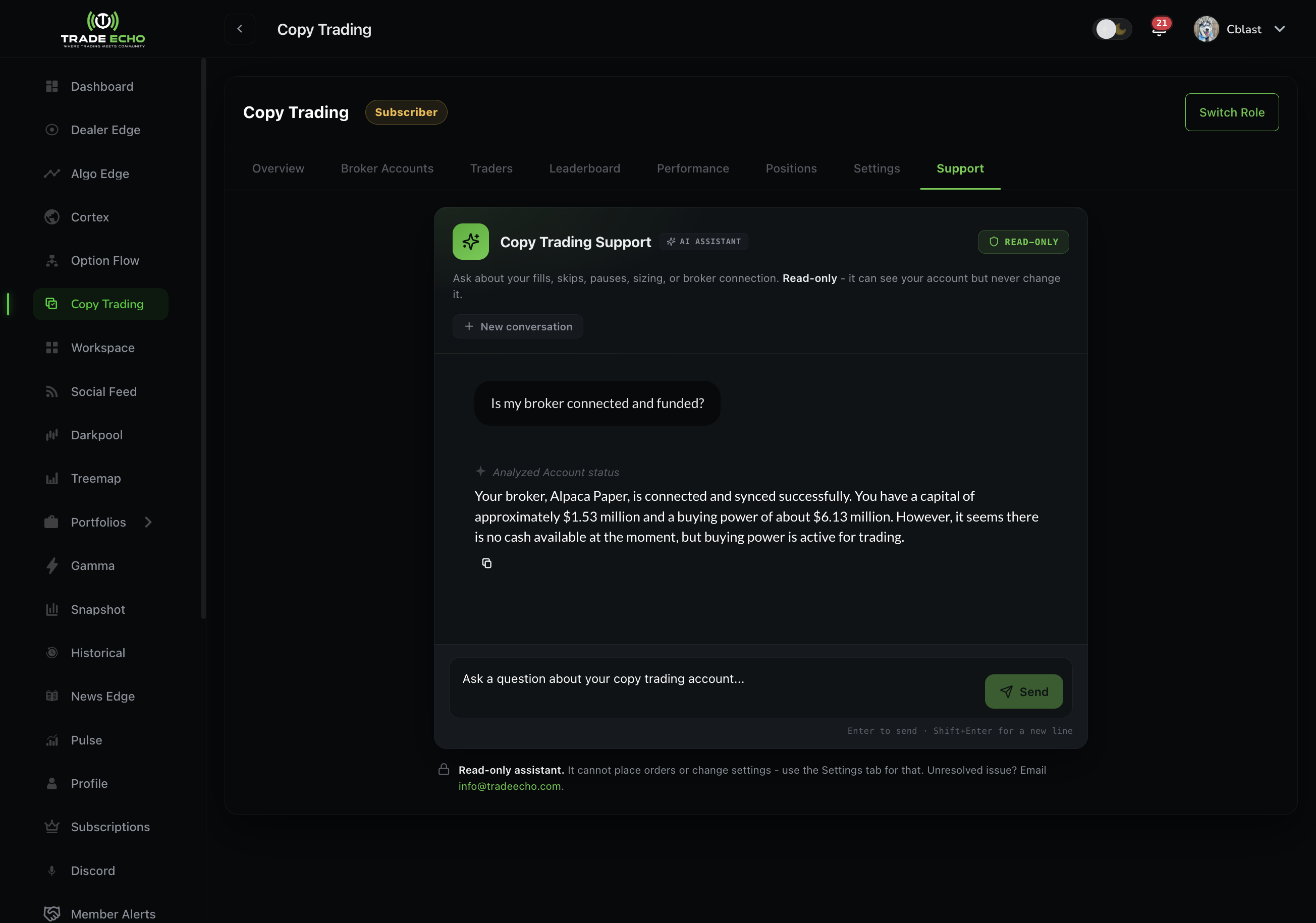
The Support tab is the in-app help desk for copy trading. A Cortex-powered chat reads your account context (read-only) so you can ask things like "why didn't my trade fill?" or "why was my order skipped?" without digging through logs. It cannot place or change trades. For account-specific skips, also check Positions → Executions and the FAQ. Escalate to Discord or email support when the chat cannot resolve your issue.
When a trade needs your OK (manual approval)
Sometimes the app asks you to approve or reject a trade before it sends to your broker. A popup or banner appears - respond before the timer runs out if you want that trade to go through. If you miss it, that trade may not copy; check Positions and Performance afterward.
More help
- Overview - Big picture and broker journal vs copy trading.
- Pilot Setup - Connect as a pilot and Set Active on the account you trade.
- FAQ - Risk, pausing, skip reasons, and troubleshooting.