My Agents and Approvals
After you build an agent in Agent Builder, manage it from My Agents (/cortex/agents) in the Cortex section of the web app.
For community listings and follower subscriptions, use the Marketplace instead.
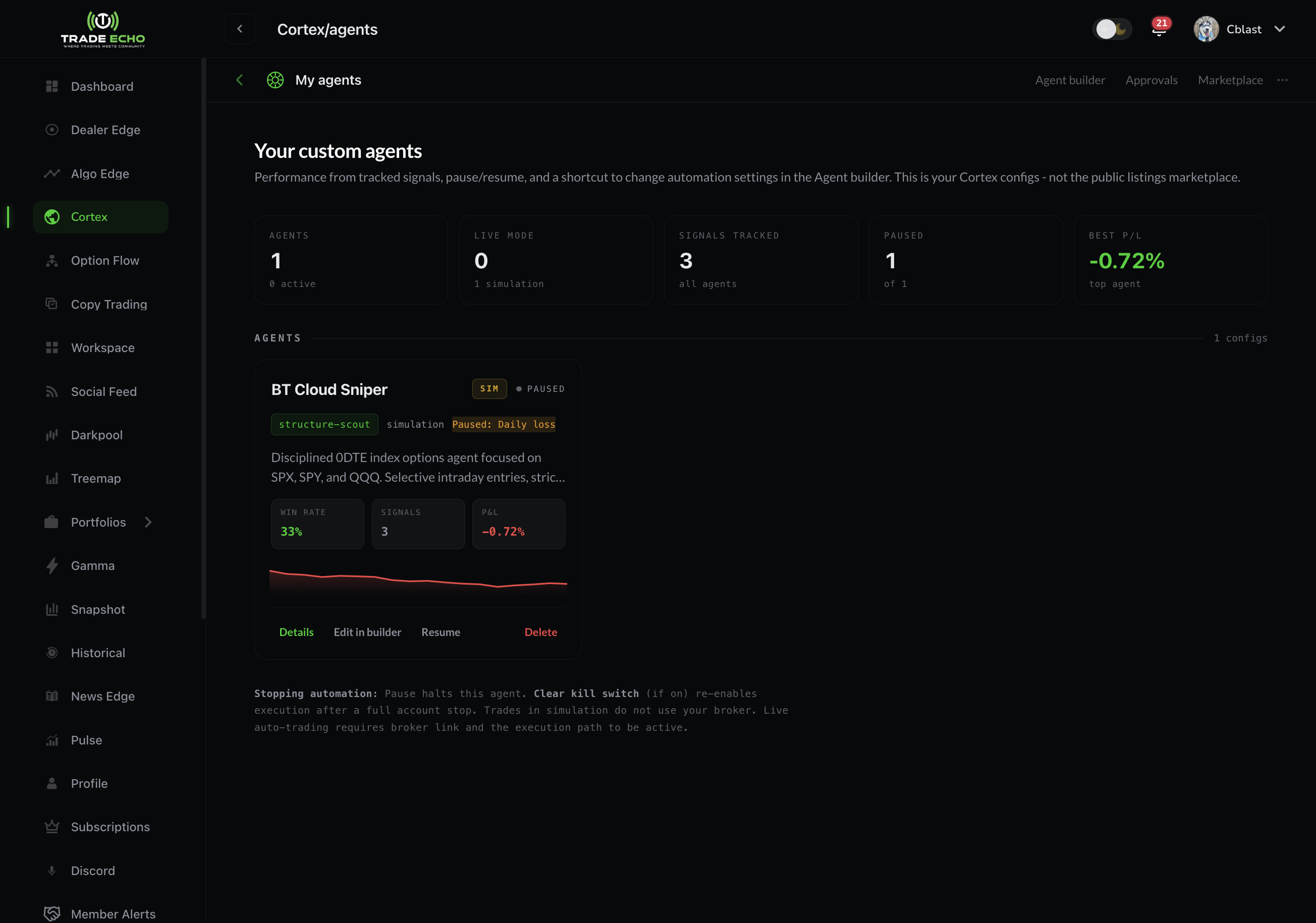
My Agents
Your home screen for every agent you created - private or published.
From each card you can:
- See current status and headline performance
- Pause or resume the agent
- Open the detail view
- Jump back into Agent Builder to edit
Auto-pause reasons
Agents pause themselves when something is off:
| Status | Trigger |
|---|---|
| Paused: Idle | 14 days with no signals |
| Paused: Drawdown | Sustained cumulative losses over many signals |
| Paused: Daily loss | Daily kill-switch tripped |
| Paused: Broker offline | Live broker session lost - reconnect and resume |
Agent detail
Open an agent for five tabs:
| Tab | Contents |
|---|---|
| Overview | Config, authority summary, and current state |
| Performance | P&L, win rate, trade count, drawdown, hold time, streaks, and risk-adjusted return by period |
| Paper | Paper trade book - simulated signals with entries, exits, and P&L (open, closed, and history). Refreshes about every 30 seconds while positions are open. |
| Activity | Recent agent runs and decisions |
| Executions | Real broker fills when the agent runs in live mode on your account |
Judge agents on the paper book over a meaningful sample - not one hot week. If the agent is live, cross-check Executions against your broker statements.
Approvals
Open Approvals (/cortex/approvals) when an agent uses review mode from Agent Builder → Set the rails.
Trade ideas queue here instead of executing immediately. Each row shows:
- The proposed intent (symbol, direction, sizing context)
- An expiry countdown
Approve to send the trade through your rails, or reject to discard it. An expired idea simply does not trade.
Review mode is the recommended way to learn what your agent actually does before switching to full auto.
The Approvals badge in the Cortex top bar shows how many intents are waiting.
Cortex surfaces (quick map)
| Surface | Route | Doc |
|---|---|---|
| Chat | /cortex | Quick Start |
| Agent Builder | /cortex/builder | Agent Builder |
| My Agents | /cortex/agents | This page |
| Marketplace | /cortex/marketplace | Marketplace |
| Approvals | /cortex/approvals | Approvals (above) |
Live execution (creators)
- Agents default to paper. Live is always an explicit choice in the Builder.
- Lifetime members can enable live on their own agents when the app offers it (straight to live brokerage path).
- Monthly / yearly members build and run paper / sim first. After about 30 days of sim trades, request live for your own agent.
- Live requires a validated broker connection. Reconnect if you see Paused: Broker offline.
- Paper vs live: simulation does not guarantee live P&L.
For following someone else's agent with live auto-execute (Lifetime unlimited · monthly 1 live follow), see Marketplace → Subscribe.
Cortex agents are research and automation tools, not personalized investment advice.
Next steps
- Agent Builder - create or edit agents
- Marketplace - browse and subscribe to community agents
- Ready-Made Custom Prompts - instruction blocks for Step 2
- Workspace - attach an agent tile to your hub layout (separate from Cortex bases)